Business Network Support: How to Inventory and Document Your Office Network
Business network support starts with an inventory: a current list of every device that connects to your network, with its location, address, and owner, plus a diagram showing how the pieces connect. A small office can build one in an afternoon with a spreadsheet and a walk through the building. Obel Infrastructure's guide to branch office inventories lists what to capture for each device, beginning with a stable name, device role, manufacturer and model, and management address. The five steps below turn that list into a working document.
What should a network inventory include for each device?
Obel's guide puts it this way: "For each device, capture a stable name, device role, manufacturer and model, serial or asset tag, management address, site, rack or room location, status, owner, and support contract or provider reference where relevant." Those fields are enough to answer the questions a technician asks first during an outage: what is this device, where is it, who uses it, and who do I call when it fails.
Firmware version belongs on the list too, even though Obel's field list doesn't name it. When a vendor publishes a security update, you can only check whether a device needs it if you know its current version.
How do you walk the office and find every device?
Start in the server closet and work outward room by room. A network scan only finds devices that are powered on and connected at that moment, so a printer in a supply room, a desk phone that's unplugged for the weekend, or a tablet in a drawer can all be missing from the scan. Walk every room, and write down what's there instead of what the scan reports.
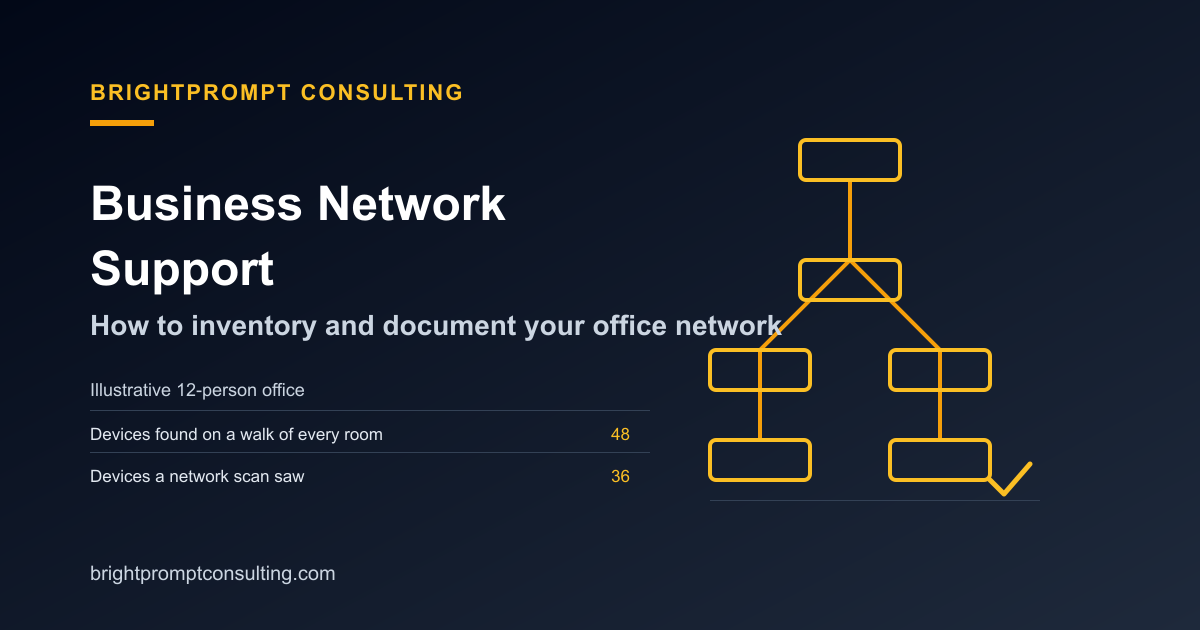
Here's an illustrative 12-person office, with counts that you'd replace with your own. The walk turns up 49 devices, while a network scan only sees 36 of them.
| Device type | Count found on walk | Usually seen by a scan? |
|---|---|---|
| Laptops and desktops | 12 | Yes, when on and logged in |
| Phones and tablets | 15 | Often missed when idle or unplugged |
| Printers and scanners | 2 | Sometimes, depending on sleep mode |
| VoIP desk phones | 12 | Usually yes |
| Wi-Fi access points | 3 | Yes |
| Switches, router, firewall | 4 | Yes |
| Server or NAS | 1 | Yes |
| Total | 49 | 36 seen by scan |
Budget about two hours for this step. In this example, a 20-minute walk plus two minutes per device to read labels and serial numbers comes to about 118 minutes. The two minutes per device is a planning assumption. A fleet of identical laptops goes faster, and a closet full of unlabeled switches goes slower.
What goes in the as-built diagram and IP plan?
The diagram shows how the pieces connect: internet feed to router or firewall, firewall to switch, switch to access points and servers. Draw what's really there, including the cable someone rerouted last spring. The IP plan records which address ranges go to which kinds of devices, so a new printer doesn't end up on the staff range by accident.
In the same illustrative office, staff laptops sit on 192.168.10.0/24, guest Wi-Fi on 192.168.20.0/24, and printers and desk phones on 192.168.30.0/24. Each range is written down with the device types that belong on it, and the router's management address sits outside all three.
Where do the admin logins and configuration backups go?
Store admin credentials for the router, firewall, switches, and access points in a shared password manager that more than one person can reach. Change every default password before the inventory is complete, and record which account owns each device. If only one person can log in, nobody else can fix the network the week that person is on vacation. Save a configuration backup for each switch and the firewall next to the diagram, so a replacement can be restored without guesswork.
How do you capture a baseline and set a review date?
Before you close the inventory, record how the network performs on a normal day: internet speed at a busy hour, the number of devices online, and any device that already shows errors or warnings. That snapshot is your baseline. Any later change, such as a new access point or an upgraded firewall, can be measured against it.
Set a review date for the inventory itself, quarterly is a reasonable starting point. Update it whenever a device is added, moved, or retired. Our Dallas network monitoring guide covers what ongoing monitoring should report once the baseline exists.
Summary of the five steps
| Step | What you produce | Planning time for 49 devices |
|---|---|---|
| 1. Walk every room | Raw list of devices by location | About 20 minutes |
| 2. Record the fields for each device | Spreadsheet, one row per device | About 98 minutes |
| 3. Draw the diagram and IP plan | As-built diagram and address ranges | 1-2 hours |
| 4. Store credentials and configs | Password manager entries and backups | 1 hour |
| 5. Capture the baseline | Speed, device count, and open warnings | 30 minutes |
If you'd rather hand this work to a provider, the network support company checklist lists what a provider should deliver in the inventory and how to compare their scope. For a plain-language overview of what network support covers, read Network Support and Services, Explained Simply.
Frequently Asked Questions
What is network support for a business?
Network support is ongoing help with the devices and connections that let your team reach the internet, shared files, printers, and phones. It usually includes monitoring, troubleshooting, and changes to routers, switches, firewalls, and Wi-Fi. The inventory is the starting point because a provider can't support what isn't written down.
Do I need special software to inventory my network?
No. A spreadsheet is enough for a small office, and the fields above fit in one tab with one row per device. Discovery tools help on large networks, but they won't find devices that are powered off, so the walk still matters.
How often should the network inventory be updated?
Update it every time a device is added, moved, replaced, or retired, and review the whole list every quarter. A stale inventory causes the same problems as no inventory: technicians spend the first hour of every visit finding out what's on the network.