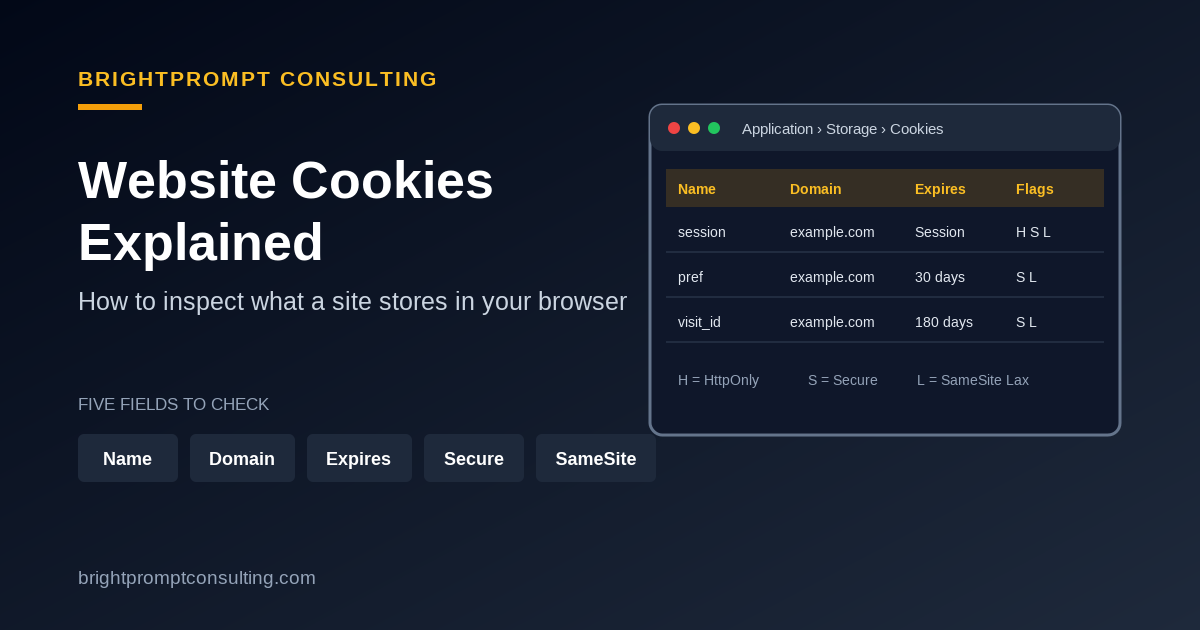
Website Cookies Explained: How to Inspect What a Site Stores
Cookies on websites are small records that a browser saves for a site and sends back under defined rules. They can keep you signed in, remember a cart or preference, measure visits, or support advertising; the cookie's domain, expiration, and security flags show where it goes and how long it lasts. To see a site's cookies in Chrome or Edge, open Developer Tools, choose Application, expand Cookies under Storage, and select the site's address.
Does my website use cookies?
Your website uses cookies if a test visit creates one or more cookie entries for its domain or a third-party service it loads. Use a fresh browser profile and check the flows you are auditing, including consent choices where appropriate. An empty cookie table does not prove that the site never attempts to set cookies: browser settings may block them, or a different page or action may trigger them. Inspect blocked Set-Cookie responses in the Network panel too. Local Storage and Session Storage are separate kinds of website data, not cookies.
Reference: Chrome DevTools cookie inspection and MDN on HTTP cookies.
How do you find cookies in Chrome, Firefox and Safari?
Each browser keeps its cookie list in Developer Tools. Pick your browser below. For what else a site stores besides cookies, see what is website data.
Chrome
- Press F12 to open DevTools.
- Select the Application tab.
- Under Storage, expand Cookies and pick the site.
Firefox
- Open DevTools with F12.
- Select the Storage tab.
- Expand Cookies and pick the site.
Safari
- Turn on the Develop menu in Safari Settings > Advanced.
- Choose Develop > Show Web Inspector.
- Select the Storage tab, then Cookies.
What are the cookies on websites?
Website cookies are name-and-value records stored by the browser for an internet domain. The Federal Trade Commission explains that a site can read its cookie on a later visit to recognize the device, remember a user ID or shopping cart, save preferences, collect activity, or customize advertising.
A cookie is only one kind of website data. Local storage, session storage, IndexedDB, cached files, server logs, and form records are separate stores. Clearing cookies may sign you out, but it does not automatically erase an order held in a company's database or a request already recorded in a server log. Our worked example of website data maps those browser, server, and business records to the places they live.
How do you inspect cookies in Chrome or Edge?
You inspect cookies in Chrome or Edge through the Application panel in Developer Tools. Chrome's official documentation gives the core path as Application > Storage > Cookies, followed by the site's origin.
- Open the page you want to check in a private window if you want a clean visit.
- Open Developer Tools with F12, Control-Shift-I on Windows, or Command-Option-I on a Mac.
- Select Application. If it is hidden, use the double-arrow menu.
- Expand Cookies under Storage and select the page's domain.
- Reload the page, then repeat after accepting or rejecting the site's cookie choices. Record what changes.
The table shows Name, Value, Domain, Path, Expires or Max-Age, Size, HttpOnly, Secure, SameSite, and other browser fields. Do not publish or paste cookie values into a support chat. A session cookie can act like a temporary key to an account.
What do the cookie fields mean?
The cookie fields tell you who receives the record, when it expires, and which browser protections apply. MDN's HTTP cookie guide describes Secure, HttpOnly, and SameSite as controls that restrict transport, script access, and cross-site sending.
| Field | Plain-English meaning | What to check |
|---|---|---|
| Name | The label the site uses | Does the privacy notice explain its purpose? |
| Domain | The host allowed to receive it | Is it the site you opened or another company? |
| Expires / Max-Age | When a persistent cookie is removed | Is the lifetime reasonable for its job? |
| HttpOnly | Blocks JavaScript from reading the cookie | Session cookies usually benefit from this protection |
| Secure | Sends the cookie only over HTTPS | Sensitive cookies should not travel over plain HTTP |
| SameSite | Limits when cross-site requests carry it | Lax or Strict reduces cross-site exposure |
| Path | Limits which URL paths receive it | Is the scope wider than the feature needs? |
How can you tell first-party and third-party cookies apart?
A first-party cookie belongs to the site in the address bar, while a third-party cookie belongs to another domain loaded by that page. The FTC calls the same distinction first-party and third-party tracking. Chrome's Developer Tools documentation notes that third-party cookies can also appear under a different origin in the Cookies list and in a request's Network > Cookies view.
Classify each cookie by purpose, recipient, and lifetime. A first-party analytics identifier can still be optional. A third-party payment service may perform a function the visitor requested. The domain label gives you a lead, not a verdict.
What does a small cookie and storage audit look like?
A small audit compares a clean visit, rejection, and acceptance, then records every new cookie or browser-storage key. BrightPrompt's checked-in analytics helper provides a useful code-level example: its default configuration has no analytics key or consent key, so capture stays off. The helper defines two anonymous identifiers for deployments that explicitly enable it, with a 30-minute session rotation and a 180-day browser identifier.
| Item in the helper | Storage and lifetime | Checked-in default |
|---|---|---|
| Anonymous browser identifier | Local storage; optional first-party cookie for 180 days on configured shared domains | Analytics disabled |
| Anonymous session identifier | Session storage; rotates after 30 minutes of inactivity | Analytics disabled |
| Consent choice | Local storage key supplied by the site's consent interface | No key configured |
| Form contents and URL query strings | Excluded by the helper | Not captured |
This is a source-code example, not a claim about every production response a host, CDN, or embedded service might add. A live audit still needs Developer Tools and a reload. The useful result is a compact register with name, provider, purpose, storage type, lifetime, flags, and what happens after rejection.
Which cookies should a website owner investigate first?
A website owner should investigate unexplained domains, long-lived identifiers, session cookies missing security flags, and optional trackers that appear before a choice. The UK's Information Commissioner's Office says strictly necessary cookies must be essential to a service requested by the user; cookies that are merely convenient or useful to the site's owner do not meet that test. Rules vary by location and audience, so this is an audit priority, not legal advice.
Also check for sudden changes. A new unfamiliar domain can come from a recently added chat widget or ad tag, but it can also signal an injected script. If the concern is a look-alike or misleading URL rather than storage on the current site, use the guide to deceptive web addresses. If visitors are being redirected, search results show spam pages, or the site loads scripts nobody installed, follow the hacked website recovery guide. For an outage or active compromise, the emergency website repair service explains coverage, response times, pricing, and how to request help.
How do you clear cookies without erasing everything?
You can clear one site's cookies instead of wiping the entire browser. In Chrome Developer Tools, select the site's cookie rows and use Delete selected, or use the browser's site-data controls. Firefox Support says the Storage Inspector can remove an individual cookie and its Privacy & Security settings can remove one site's cookies and data.
Save unsent work first. Clearing a site's cookies can sign you out, empty a local cart, reset language or accessibility choices, and end an in-progress session. It will not cancel an order already submitted to the business or delete an account stored on the server.
Frequently Asked Questions
Are website cookies dangerous?
Most cookies are data records, not programs, and many support ordinary functions such as login sessions and preferences. Risk depends on what the cookie identifies, who receives it, how long it lasts, and whether protections such as Secure, HttpOnly, and SameSite are set.
Should I accept all cookies?
You can accept the essential cookies needed for a requested feature and review optional analytics or advertising choices separately. Read the categories and use the site's settings when available.
Does clearing cookies delete my personal data?
Clearing cookies removes browser-side records for the selected site. It does not erase server-side accounts, purchases, submitted forms, support tickets, or backups. Contact the site operator for requests involving those records.
Why did clearing cookies sign me out?
Many sites use a session cookie to connect the browser with an authenticated session. Removing that cookie breaks the connection, so the site asks you to sign in again.